Solution Testing
We will create an EBS volume with type gp2 to test the solution:
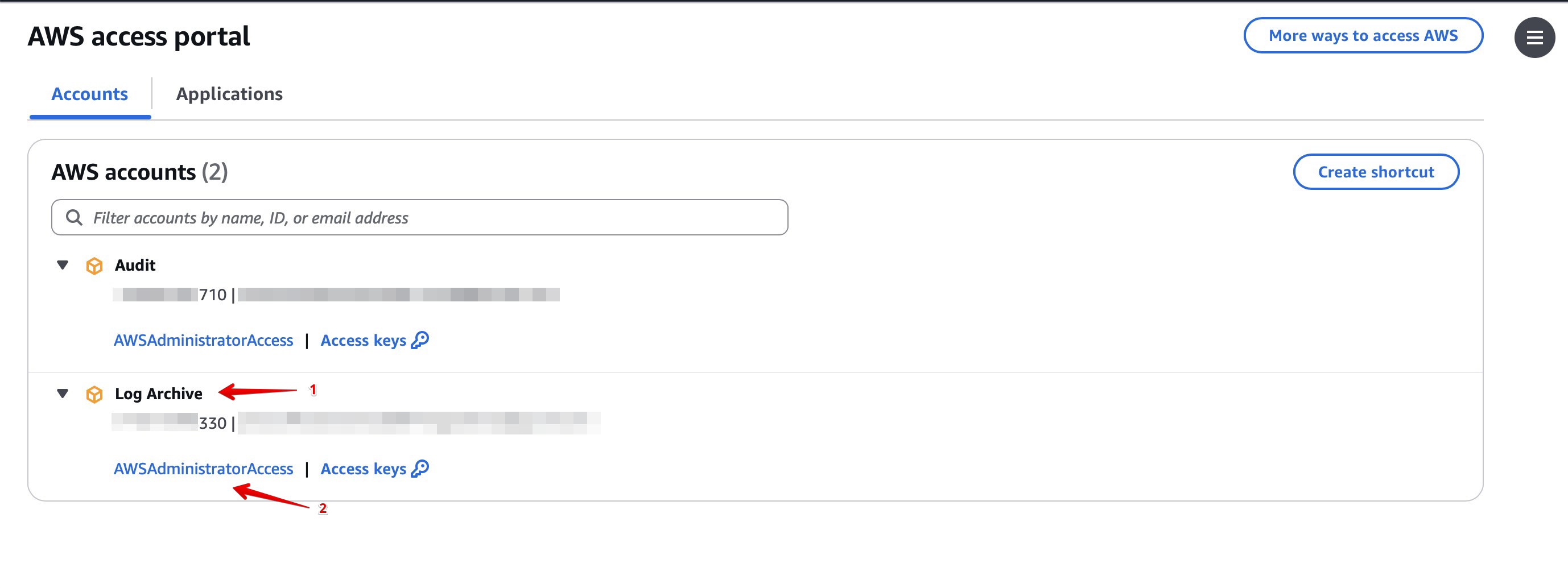
Sign in again using a member account.
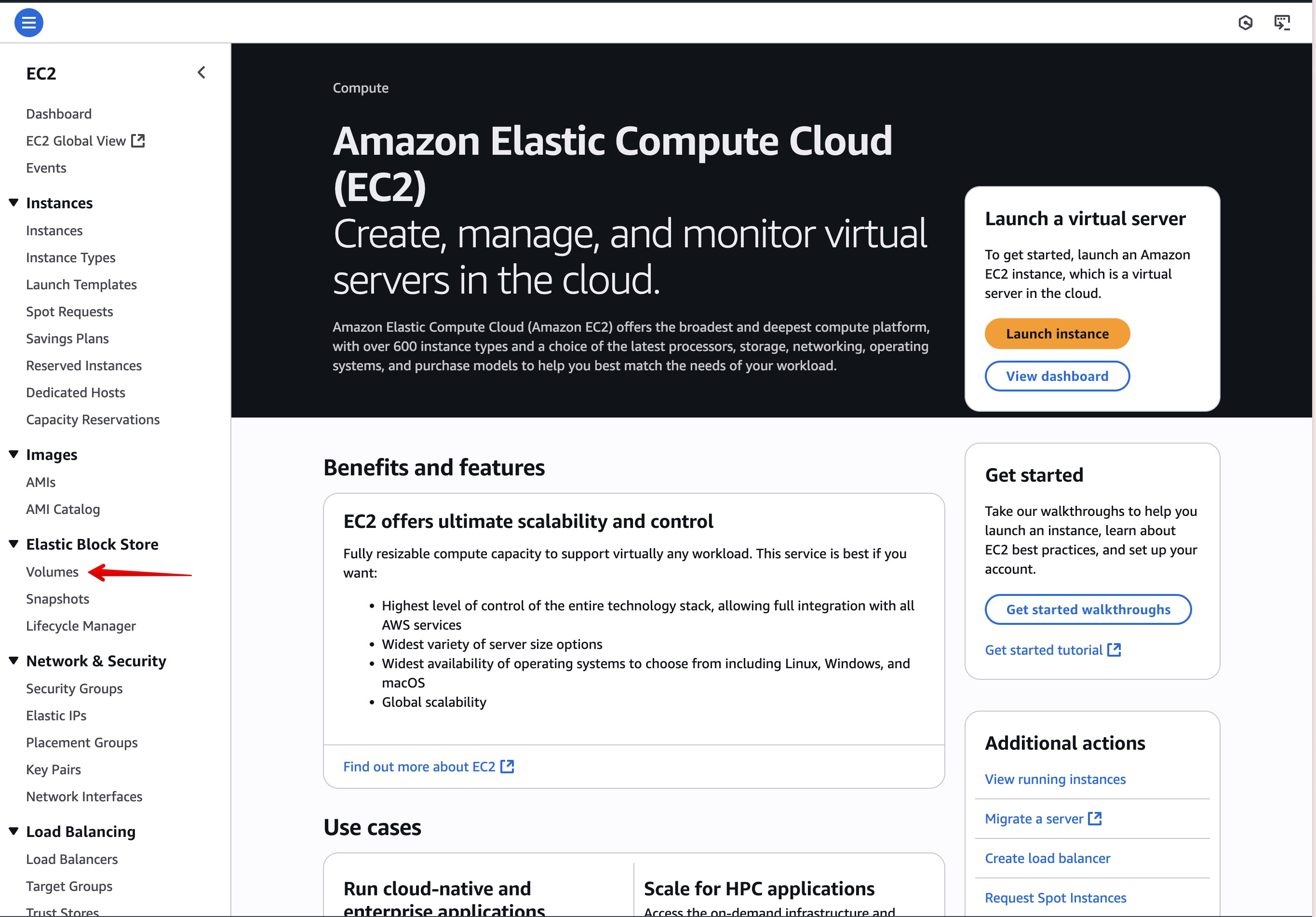
Navigate to the EC2 service.
In the left navigation pane, select Volumes.
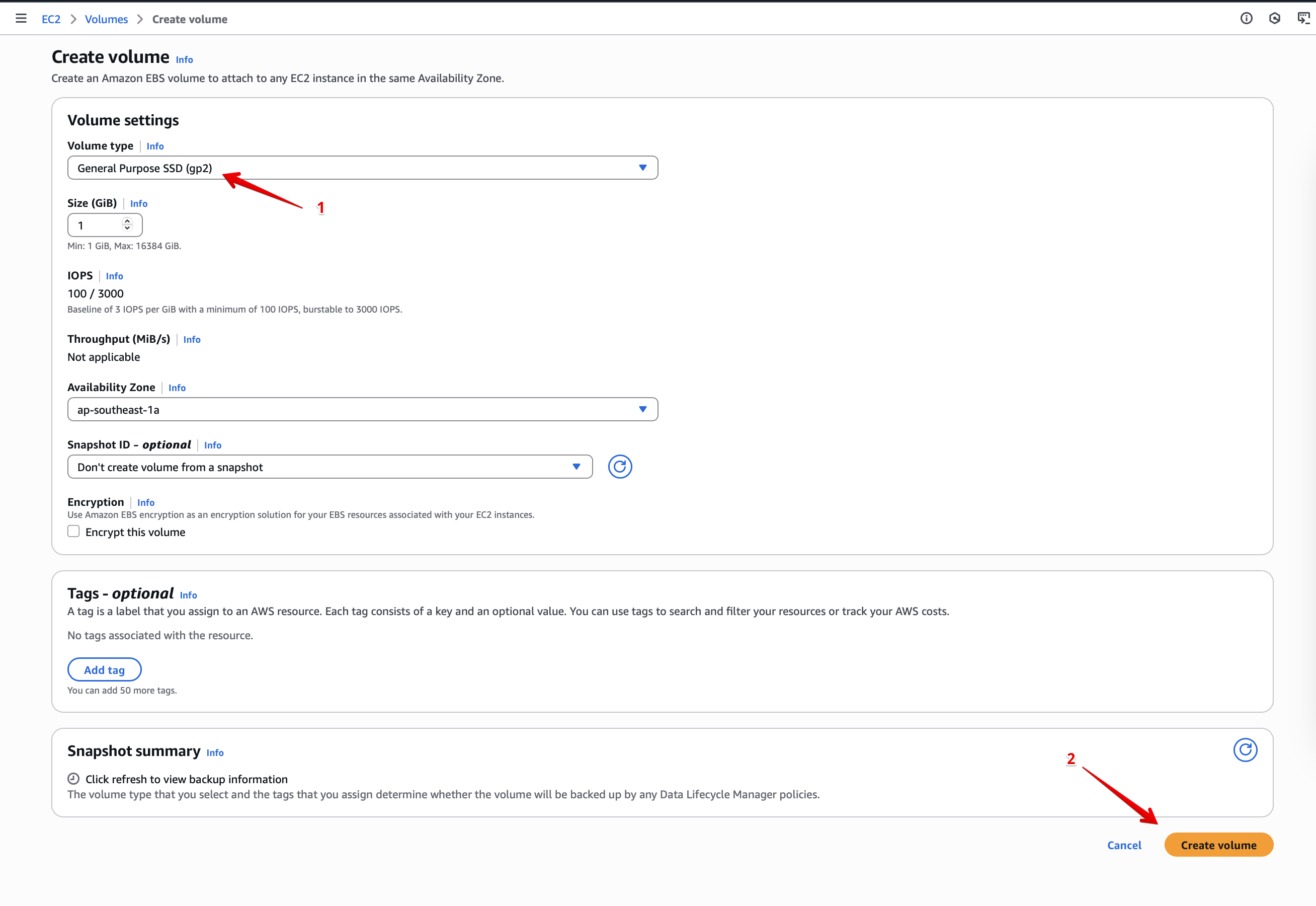
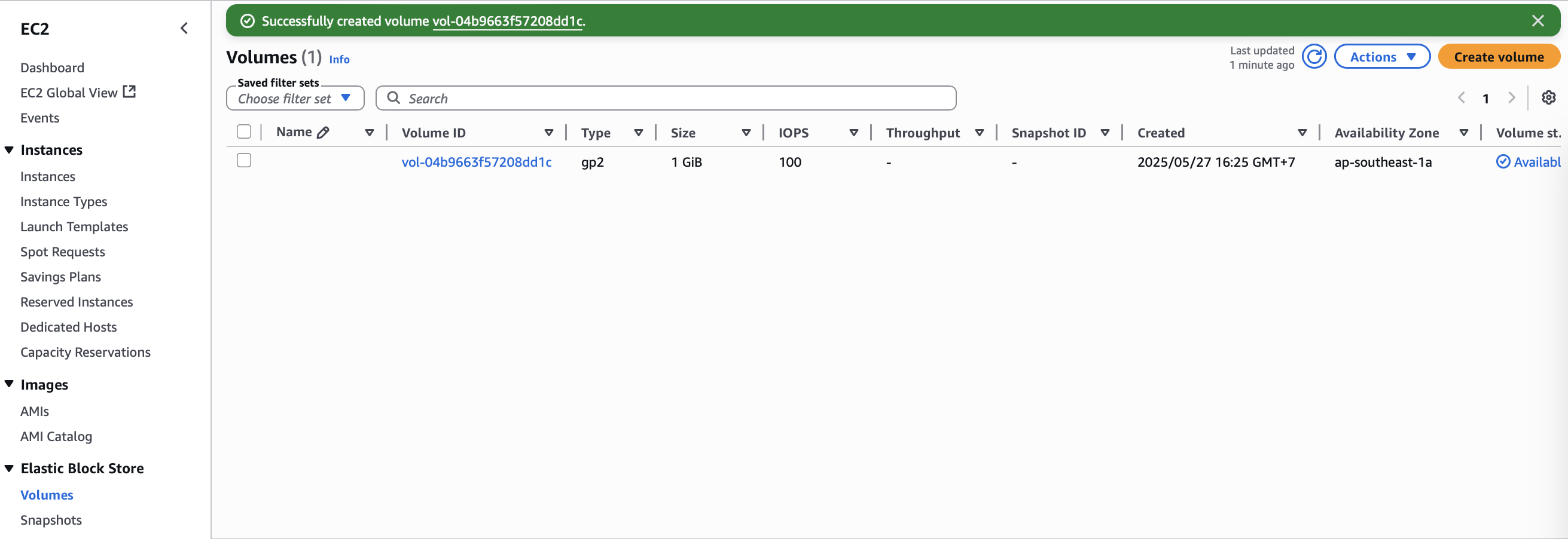
Create a new volume with the following properties, making sure to choose the gp2 volume type.
After creation succeeds, verify the volume state, then navigate to AWS Config.
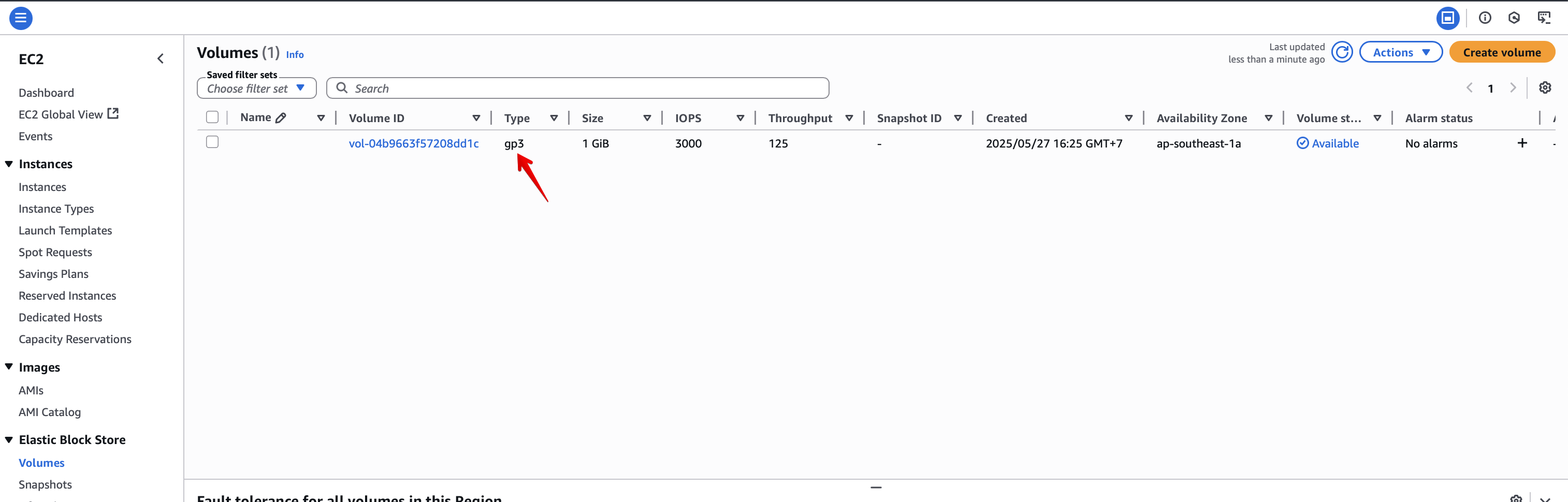
💡 Note the EBS volume ID to correlate with the AWS Config Conformance Pack evaluation results.
Select the Conformance Pack named
Cost-Optimization(or similar).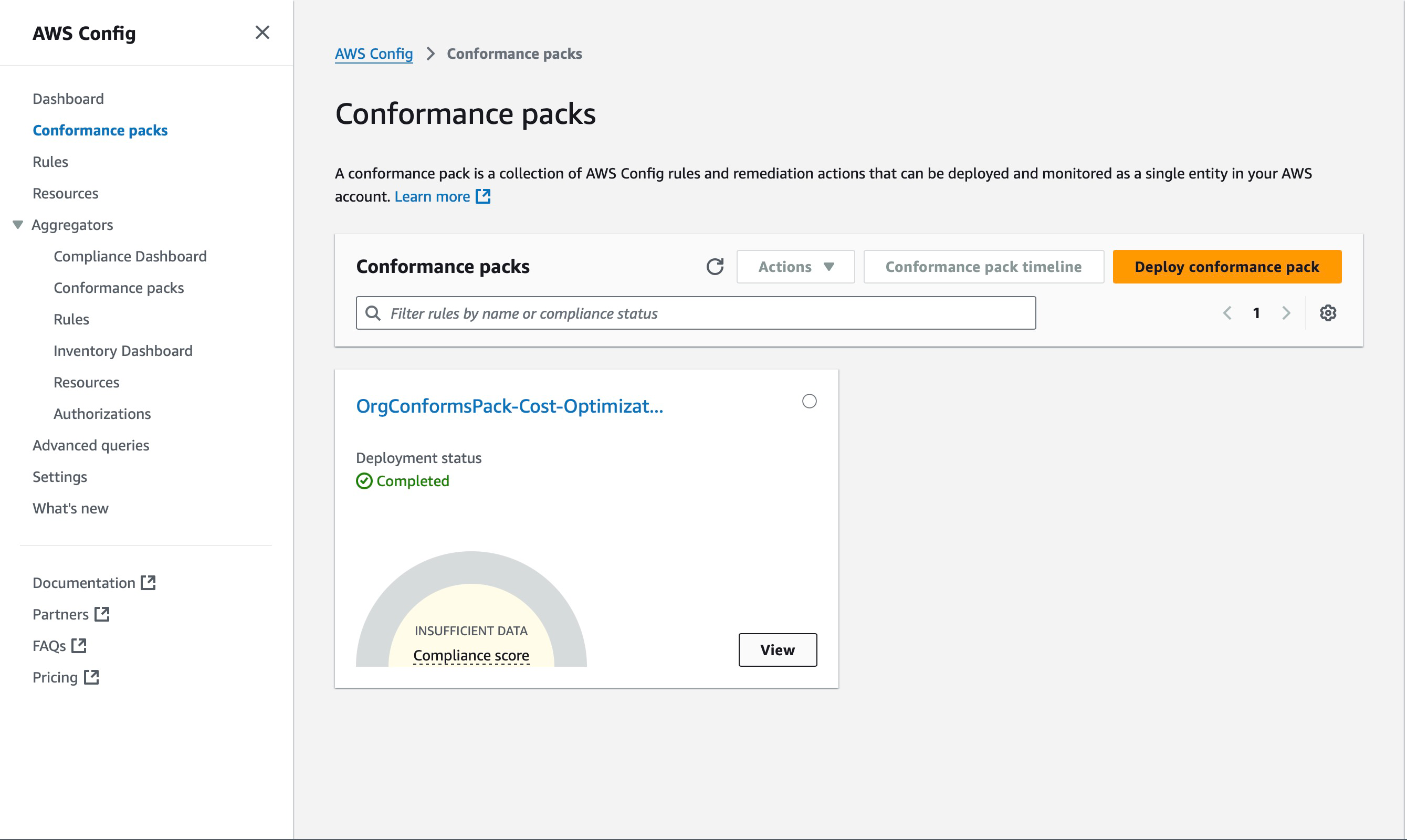
Click View to see the list of rules.
Since the newly created EBS volume is gp2 and unattached to any EC2 instance, two rules will be marked as noncompliant.
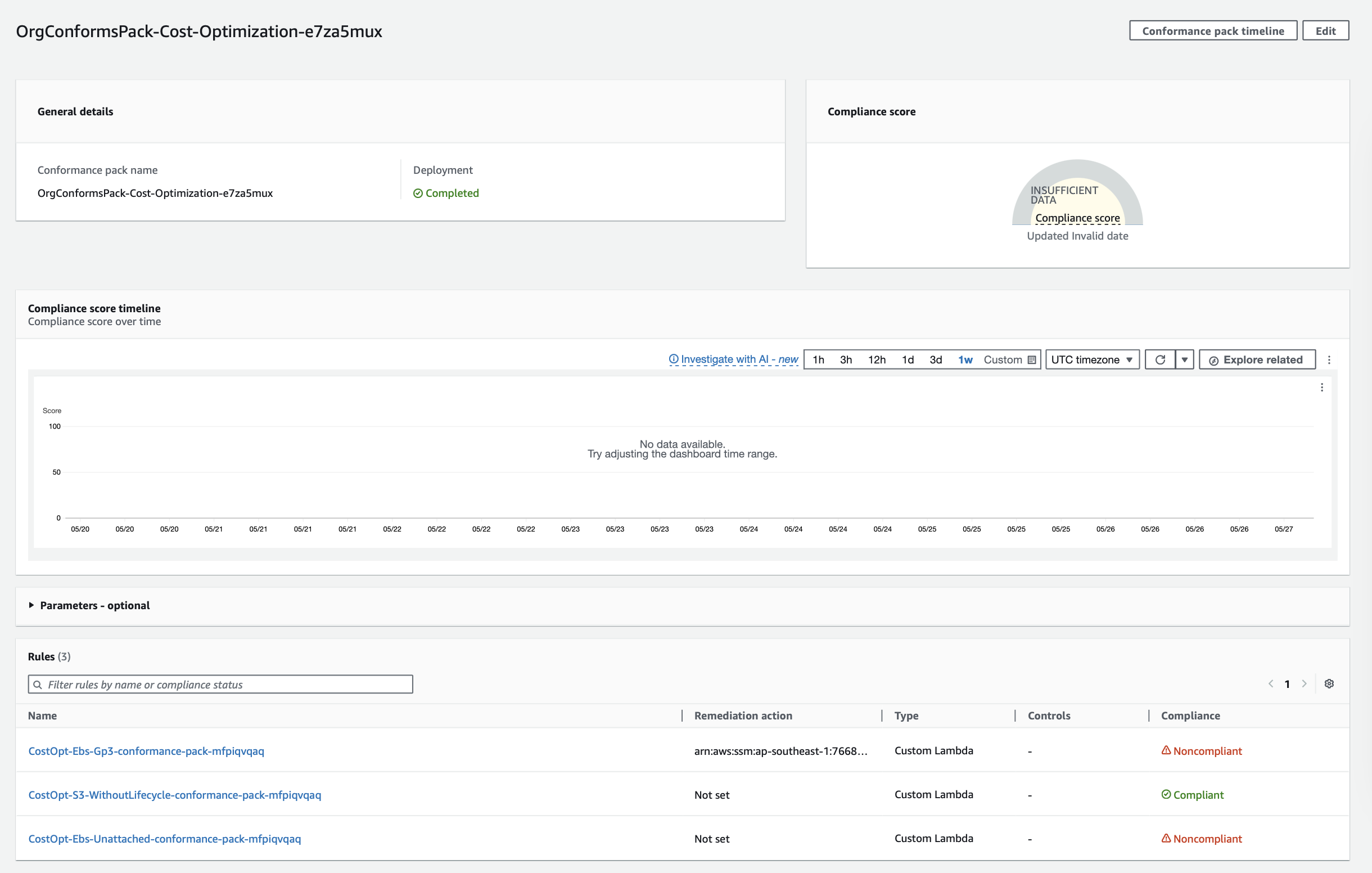
Click the
CostOpt-Ebs-Gp3rule to open the rule dashboard.The dashboard lists EBS volumes violating the gp3 requirement, showing the same ID as our new volume.
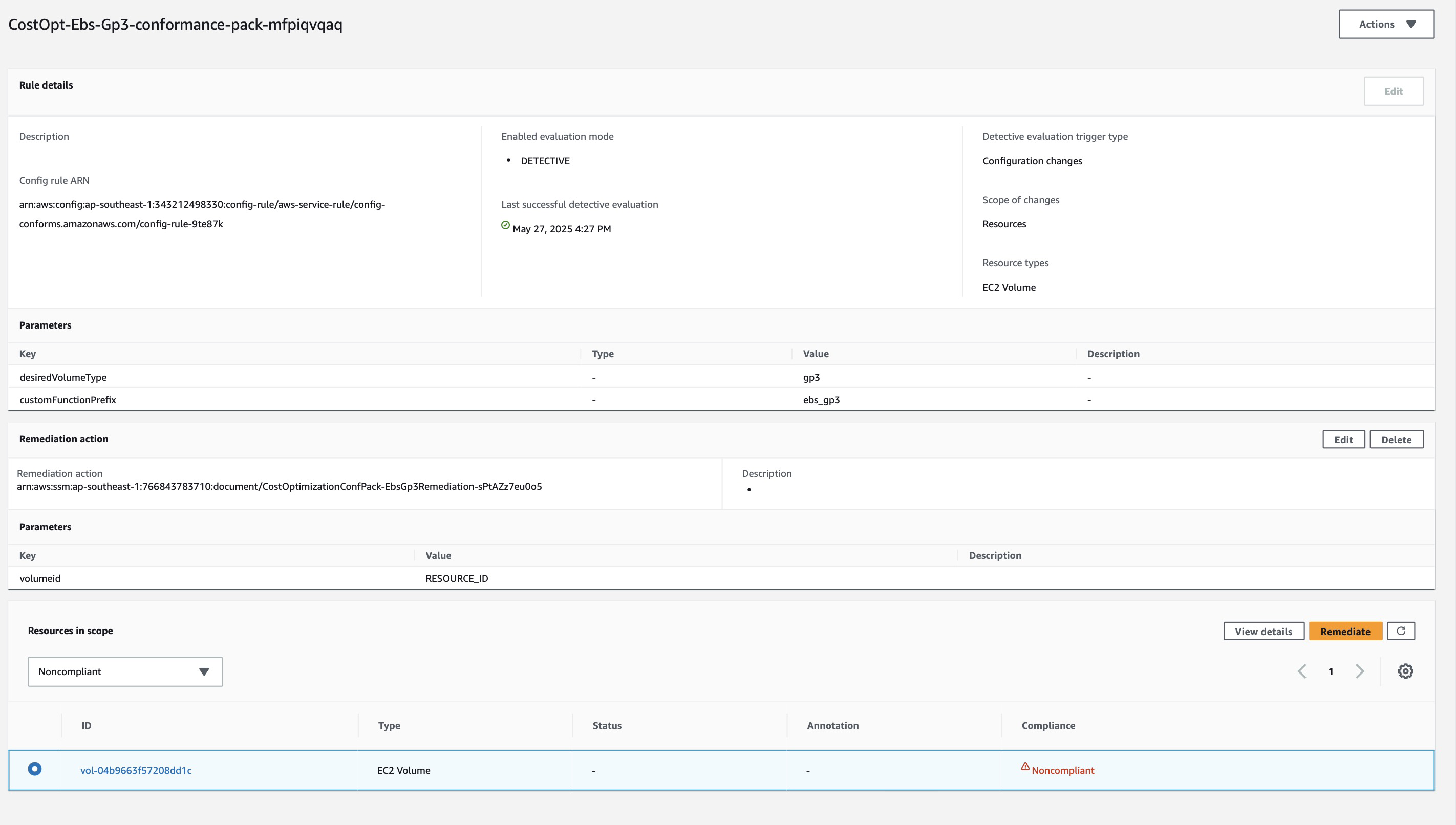
To remediate, click the Remediate button.
Wait a moment, then check the Status column as shown below:
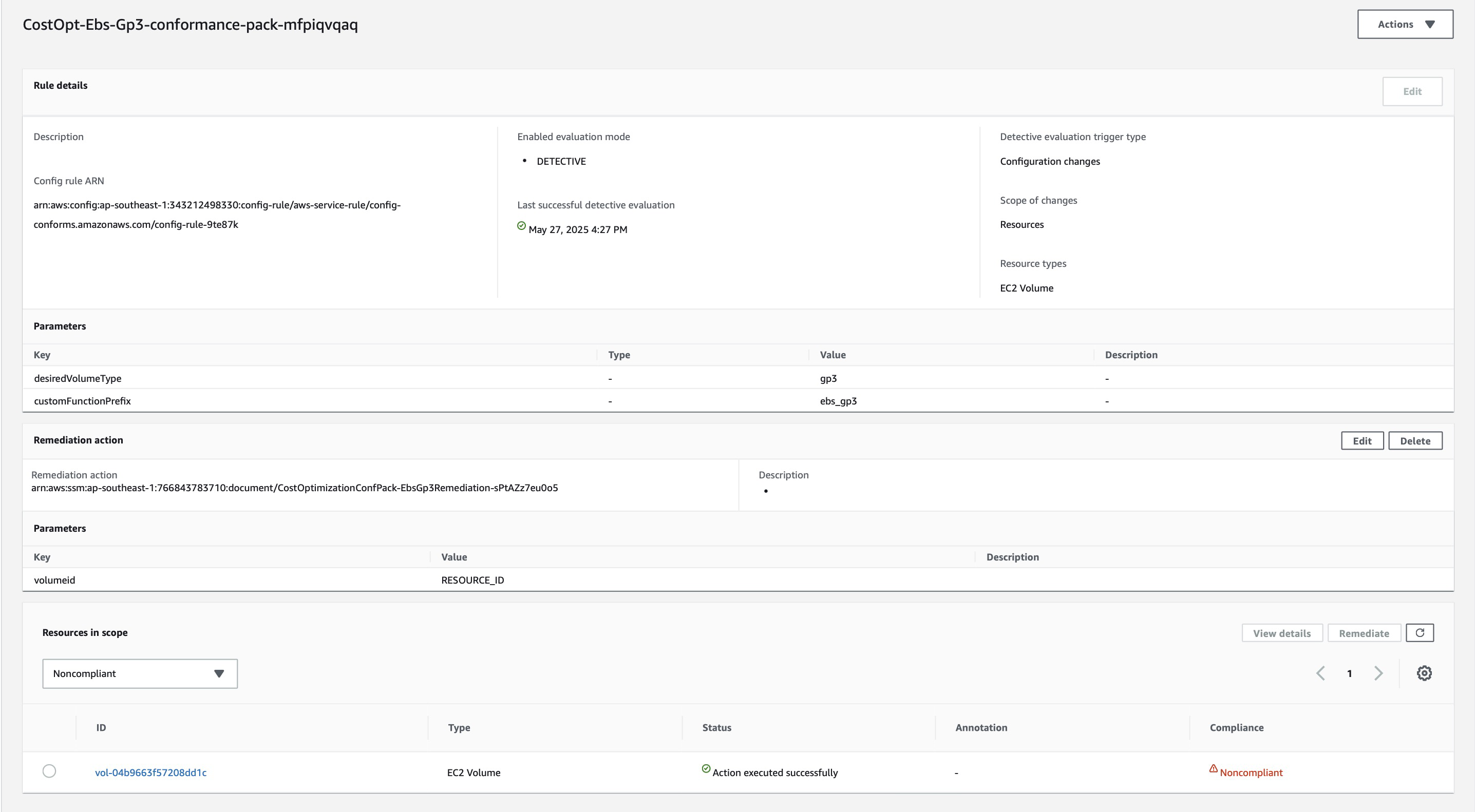
The EBS volume will disappear from the dashboard once it becomes compliant.
Verify the properties of the updated EBS volume: